Markdown Style Reference
This document is not a markdown tutorial. It's merely a guide to the features available on this site. GITM's ReadTheDocs site is built using MkDocs and a number of plugins. This takes the (relatively) vanilla Markdown of MkDocs and extends its functionality.
To develop locally, one can simply install the Python requirements in
srcDoc/requirements.txt and then spin up a MkDocs server, previewing the
documentation live! It's very useful.
pip install -r srcDoc/requirements.txt
mkdocs serve
Table of contents can be inserted with
[TOC]
For example (ensuring there are newlines before & after):
General Syntax
Markdown can put italics and bold in really easily by surrounding the text
with one and two asterisks *, respectively (i.e. *italics* and **bold**).
There are *escape* characters available too; use a backslash before an
asterisk to have it shown \*. For bold and italics, use three
asterisks.
For a new paragraph, use two line breaks. otherwise it is the same paragraph.
we can note that something should be indented with
>at the beginning of a line.
To mark something for deletion, use two tilde ~~, and to mark for
insertion, use two pluses ++.
Headers work as one would expect; use a single # for header one, and more #'s for each sub-level. Horizontal lines can be made with ---, surrounded by newlines before & after.
Lists
Lists can be:
- Ordered
- Like this one
-
Which is numbered automatically.
- automatic numbering is nice for ordered lists. Edits can be made without the need to go back and change every single entry.
- we can nest lists, and switch between ordered/unordered.
print("hello world!") -
The list should be smart enough to resume counting after we take a break to do something, as long as it is indented
Code
Code can be shown either inline: print("hello world"), or in a block:
```python
print("hello world")
```
Code blocks' syntax (highlighting) can be set after the three backticks. The above block uses python syntax.
Additionally, one can include the three backticks in a code block by surrounding it with a different number of backticks. As a ridiculous example:
````
```python
print("hello world!")
```
````
Links
Links are specified with [link text](the_link). The first option is the text
to display, the second is the actual link. For example, here is the link to the
GITM repository. It is ok to have
linebreaks within the link text.
More Complex Syntax
Comments, Abbreviations
Comments use HTML syntax: <!-- comment text> </!-->
Define an abbreviation with: *[TEXT]: Definition. Hover over HTML to see its
definition.
That abbreviation will stick around across the entire page, as it is HTML.
Footnotes
We can add a footnote, such as1. Footnotes have a label, specified with
[^2], and that label can be anything we want, for example 3.
Footnotes are automatically numbered. One can place the footnote definition
anywhere in the document4. The footnotes do not need to be defined in
order as long as their labels are unique (i.e. we can put anything we want for a
label, as long as it is unique, [^aHJpxms], for example)2.
Footnotes are great for citations!
References
We can add references to any header level. Links are automatically created, but
we can make out own by adding {#refname} to the header. If we do not add
anything, the name for ## a subheader section would be #a-subheader-section.
Then later we can point to it like any other hyperlink. For example,
[this link will go to the above subsection](#a-subheader-section).
Or, a real one:
this link points to the More Complex Syntax sub-header.
Admonitions
Admonitions are these fancy boxes. See here for more information
Tip
Our theme (material) supports some non-standard admonitions
Warning
Here's a warning. new lines need two breaks.
Here's how to put multiple lines in an admonition
Danger
This is for something very serious
custom label
notes can be given custom labels!
This uses the bug callout
Onlythefirstwordfromthelabel
Stick to using !!!note "multi word label" when possible.
Math
Math can be done inline, differing from LaTex in that we need to use $` and `$ to surround the math. For example, is an equation inline. For equation blocks we need to surround it with backticks, like so:
```math
% comments can be placed in math mode
\begin{align}
    E=mc^2
\end{align}
```
Which produces:
For numbered equations, use \begin{align} and \end{align} surrounding the
equation. These are consistently numbered throughout the document.
Images
Figures
Insert images with . The caption will
appear below the image, for example:
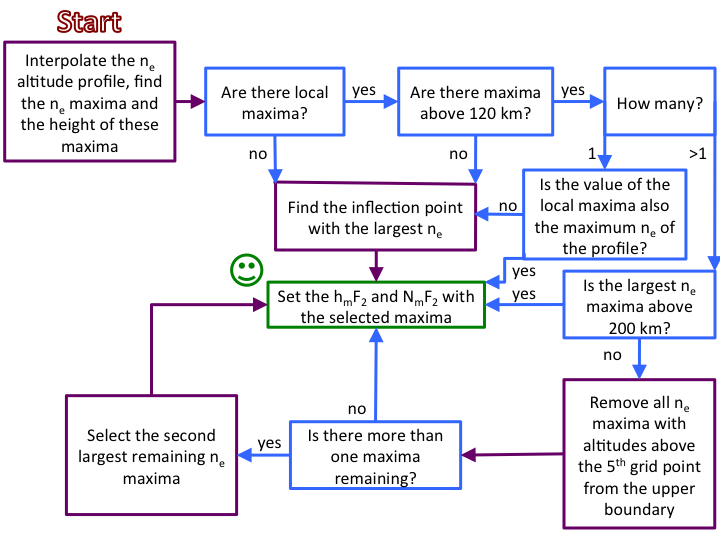
This figure was made with the code:

Alternatively, you may not wish to write out the path inline if it may change later. Having all the paths to figures in one place will make moving things around later much easier. Figures can be made with a reference, then specify the path later, using:
Some terrific, fantastic documentation.

![Description of something cool.][ref1]

More splendid documentation.

[ref1]: /path/to/image
To forgo a caption entirely (they aren't even that useful), just do not include
it in the . For example:
See? No caption! It is possibly to define a new style for figures, and to uniquely number them, but it is probably not worth doing.
Flowcharts
I'm including this because it's cool, but may not be too useful. We can utilize something called Mermaid to make flowcharts with relatively simple syntax. Some helpful links to get started would be this beginner's guide and the live editor, which allows for live development of a mermaid chart.
Charts are put in automatically.
The above example uses:
```mermaid
graph TD
    A[Input] --> B[Think]
    B --> C[Outcome One]
    B --> D[Outcome Two]
```
Labels can be added to the arrows. The following code has a simple example:
``` mermaid
graph LR
  A[Start] --> B{Error?};
  B -->|Yes| C[Hmm...];
  C --> D[Debug];
  D --> B;
  B ---->|No| E[Yay!];
```
Note
The chart's direction is set with TD (top-down) and LR (left-right).
More complex charts are available. Check the Mermaid documentation for examples!
-
This is footnote content. ↩
-
This footnote is defined out of order to when it is first referenced. It affects the numbers given to other footnotes. ↩
-
The links back to the text are handled automatically. Hover over the above text if you do not see an arrow.
Multi-line comments are the same as body text - they need two newlines. To continue writing the footnote, text must be indented with 4 spaces or a tab.
These descriptions can be placed anywhere within the document. ↩
-
This footnote is defined at the bottom of the document. Probably not the best for making edits! ↩